


AI Image Generator - CreArt
4.22.47K Reviews
App Specs
- Version
- 3.0.1
- Updated On
- License
- Free
- Downloads
- 1,000,000+
- Developer
- Yawai
- Categories
- Art & Design
- Platform
- Android, iOS
Screenshots
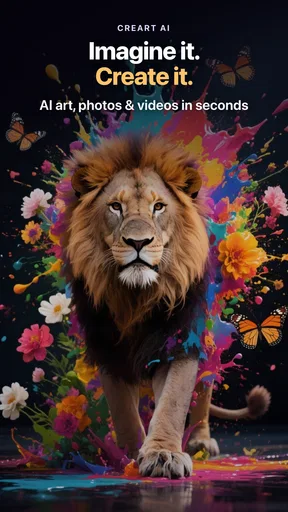
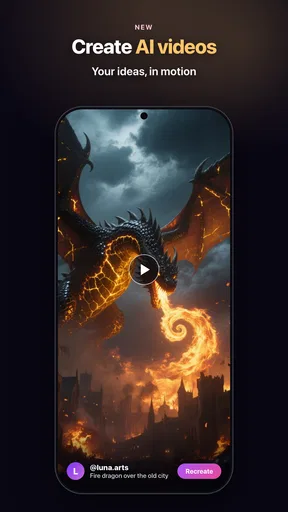
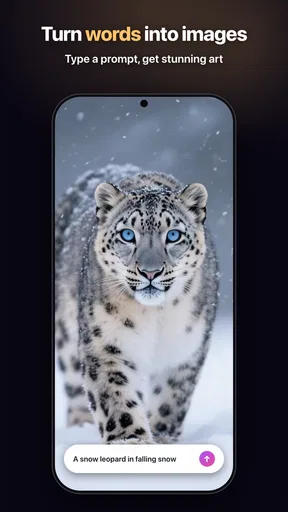
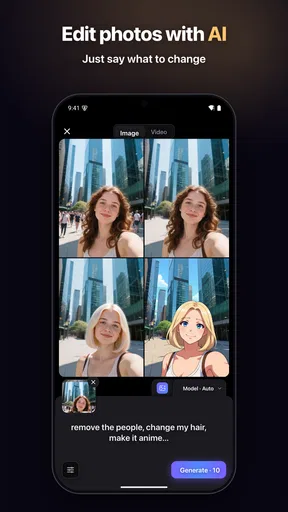
 Analysis by AppCompare
Ever found yourself scrolling through your photo gallery wishing you could tweak those images just a bit, or maybe add some artistic flair? Well, that's where the magic of AI Image Generator - CreArt comes in. I’ve been playing around with this app for a while now, and let me tell you, it's like having a mini art studio right in your pocket.
Where this kind of image-making fits
I find CreArt most useful when I have an idea for an image but not the time or skill to build it from scratch. It is an art and design app from Yawai, aimed at turning a prompt or image into a creative result rather than offering the detailed control of a full drawing or photo-editing suite. That distinction matters: it is a handy place to experiment, but it is not a replacement for carefully retouching a photograph or constructing a finished illustration layer by layer.
A realistic use is making a playful image for a chat, a personal mood board, or a visual starting point for a project. If I wanted a particular atmosphere for a birthday message, for example, I could try a few different directions and choose one that feels right before sharing it. I would treat the result as a draft or expressive image, not assume it will match an exact mental picture on the first try.
The app is free to install, with in-app purchases ranging from $4.49 to $89.99 per item. I’d explore the free experience first and decide whether its results suit my routine before spending anything. That is especially sensible if I only want to make an occasional image; a person who creates frequently may judge the paid options differently, but should still weigh them against the amount of control they need.
Unleashing Creativity with AI
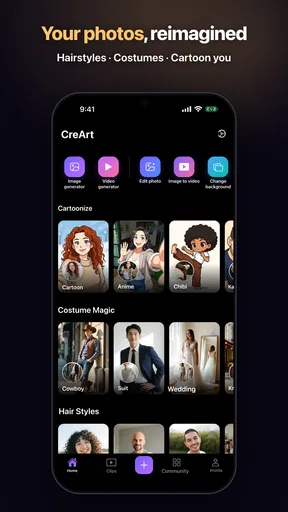
The first thing you'll notice about AI Image Generator - CreArt is its user-friendly interface. It’s incredibly intuitive, which is perfect for people like me who aren’t exactly tech wizards. You don’t need a degree in graphic design to start creating stunning images. Simply upload a photo, choose your preferred style, and let the AI do its thing. In a matter of seconds, you’re presented with an artwork that could rival a professional painting.
Readability and navigation
That straightforward flow is a practical strength for anyone who wants to get from an idea to an image without learning a complicated editing workflow. I would still take a moment to read the labels and preview choices rather than tapping quickly through them: creative apps can make similar-looking options feel interchangeable, while a small change in wording or style can send the result in a different direction. The simpler interface helps beginners get started, but it does not remove the need to judge whether the generated picture actually suits the task.
CreArt has a Teen content rating, so I would not treat its presence on a phone as a reason to hand it to a younger child without supervision. For a teenager interested in visual experimentation, the approachable format may be less intimidating than a professional art program. For adults who need precise production tools, its convenience is better understood as a quick creative route than as evidence of advanced editing controls.
Worth Reading Before You Choose

EA SPORTS FC Mobile 26 Is a Bigger Football Game, but It Takes Time

Flipboard Shows What News Apps Must Do Beyond the Feed

Switching to Android Auto Means Rethinking Your Driving Routine

Google Calendar Makes a Crowded Week Easier to Manage

Ludo King Makes the Most of the Minutes Between Plans

Baby Panda World Brings Quick Play to Modern Phones, but Its Game Library Feels Busy
Features Galore
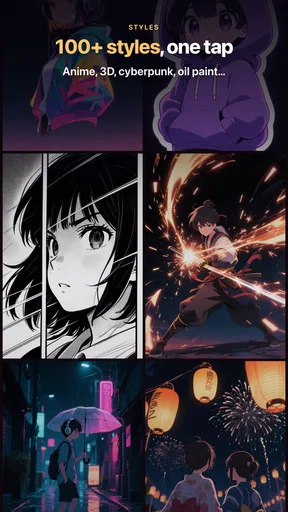
What’s really cool about this app is the variety of art styles available. Whether you're into abstract, watercolor, or something more traditional, there’s a style for you. The AI works its magic by analyzing your image and applying the chosen style, creating something truly unique each time.
I also love the fact that you can adjust the intensity of the effects. Want something subtle? No problem. Prefer a bold transformation? Just slide that intensity bar up. It’s all about giving you control over your creative process.
One useful way to work with that control is to make a restrained pass before pushing the effect harder. When I want an image to remain recognizable, I would start gently, inspect the face and important edges, and only then increase the strength if the transformation feels too faint. A stronger treatment may be more striking as a standalone artwork, but it can also obscure the details that made the original photo meaningful.
Another trade-off is that a style choice is not the same as a precise instruction. If the image is intended as a reference for a specific object, layout, or brand, I would keep the original alongside the generated version and check all essential details rather than relying on the artistic result alone. For casual sharing, surprise can be part of the fun; for work where accuracy matters, that unpredictability makes a dedicated editor or illustration tool the safer choice.
Motor and sensory considerations
The basic create-and-adjust approach does not demand the kind of drawing accuracy needed by a brush-based art app, which can make it a more approachable option for someone who finds fine stylus movements tiring. At the same time, the intensity adjustment involves a touch gesture, so anyone who has difficulty with small or controlled movements may find that part less comfortable. I would use deliberate, short adjustments and pause to review the preview instead of trying to land on a perfect setting in one swipe.
For sensory comfort, the ability to choose a gentler effect gives me a way to avoid an image that feels visually too busy. That is a useful choice, not a guarantee that every output will feel calm: a bold style can still produce a lot of contrast and visual texture. If I were creating something for a person sensitive to intense imagery, I would inspect the finished image myself before sending it, rather than assuming the style name predicts its overall feel.
Performance and Usability
Now, let’s talk about performance. The app runs smoothly on both Android and iOS devices. I’ve tried it on my slightly older phone, and it didn’t lag or crash, which is a big win in my book. The developers seem to have optimized it well to ensure a seamless experience regardless of your device.
Another aspect worth mentioning is the app’s speed. The processing time for each image is impressively quick. You won’t find yourself waiting ages for your masterpiece to appear. A few taps, a few swipes, and voilà - your image is ready to be shared.
For someone who creates in short breaks, a quick cycle is useful: choose a photo, try a style, check the result, and decide whether it is worth keeping. I would avoid treating speed as a reason to rush the selection, though. A quick result is only valuable if it works for the intended use, and setting aside a moment to compare the image with the original can prevent an exciting but unsuitable version from becoming the one I share.
CreArt is listed for devices running Android 7.1 or later, and its current version is 2.7.2. The app has an average rating of 4.3 from around 96,000 ratings, with roughly 2,300 written reviews and more than 1 million installs. Those figures suggest that it has found a sizable audience, but they do not tell me whether the app will fit a particular workflow; my own deciding question would still be whether its style-based approach gives me enough control.
Situational access and choosing an alternative
This is the kind of app I would use while commuting, waiting for a friend, or sitting down with a few minutes to turn a familiar photo into something more expressive. In those situations, a phone-based creative tool is easier to reach than a desktop editor, and the short process encourages experimentation. If I were preparing a polished poster, adjusting tiny details, or trying to preserve exact colors and shapes, I would switch to a conventional editor instead. Those tools take more effort, but their manual controls are better suited to exact outcomes.
Compared with the usual alternatives in art and design, CreArt sits between a basic filter app and a full creative suite. A simple filter is often the quickest choice when I only want a predictable color treatment. A drawing app is better when I need to control every line, and a professional photo editor is stronger for careful correction. CreArt’s appeal is the middle ground: it can make a photo feel newly interpreted without requiring me to paint the transformation by hand.
A small workflow tip is to choose the source image with the final use in mind. A clear subject gives me a better chance of recognizing what the style has changed, while an image already full of tiny details may become harder to read after a strong treatment. I would also save the untouched photo separately before experimenting, so the original remains available if I prefer it later. This keeps the creative version from becoming the only version I have.
Sharing and Community
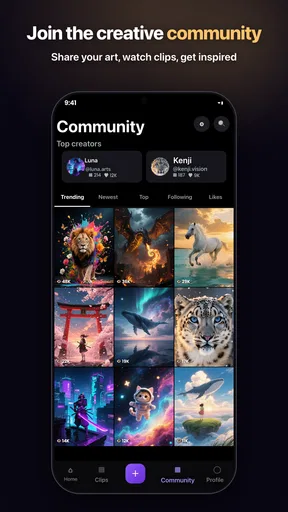
Speaking of sharing, CreArt makes it super easy to show off your creations. You can directly post your images to social media platforms or save them to your device with just a tap. There’s also a burgeoning community of users sharing their creations, which is a great place to get inspiration and see the app’s potential.
For everyday use, saving first can be a better choice than posting immediately. It gives me a chance to view the image outside the creation screen, decide whether it reads well at its intended size, and choose the right moment to share it. I would also be thoughtful about which personal photos I use as source material, especially when an image includes someone else. That is a simple habit worth keeping with any app that helps transform pictures.
Remaining barriers and who should skip it
The biggest limitation for me is the gap between creative interpretation and exact control. A generated image may be fun and attractive while still changing a detail I wanted to keep. That makes CreArt a weaker choice for precise product images, carefully edited portraits, or artwork that must follow a strict visual brief. I would also skip it if I mainly want manual retouching, layers, or direct control over individual marks; a dedicated editor will make those jobs less frustrating.
There is also a practical learning curve hidden inside an easy interface: working out which source images and effect strengths produce results I like takes some trial and error. I would start with a photo whose outcome is not important, test a couple of restrained choices, and only move on to a meaningful image once I know the kind of transformation I prefer. That approach makes experimentation less wasteful and keeps expectations realistic.
Yawai’s app is free to download, but the available in-app purchases mean I would pay attention to any purchase decision rather than assuming every option is included at no cost. If I only need an occasional creative variation, I would stick with what I can use comfortably without buying more. Someone who plans to make images regularly may find it worth considering a purchase, but only after confirming that the app’s style-led results—not precise editing—are what they actually want.
Why You Should Try It
If you’re someone who enjoys dabbling in digital art or just wants to spruce up their photos, this app is definitely worth a try. It’s not just about the end result – the process itself is quite enjoyable and even a bit therapeutic. Plus, knowing that you don’t have to be an expert to create something beautiful is incredibly empowering.
It is especially easy to recommend to curious beginners, casual creators, and anyone who enjoys seeing a familiar image take on a different mood. I would be more cautious about recommending it to someone who needs dependable, repeatable output for client work or who wants detailed accessibility controls; a simple creative flow does not answer every need. The best fit is a person happy to experiment, compare results, and keep the image that feels right rather than demand an exact result every time.
A welcoming tool with clear limits
In conclusion, AI Image Generator - CreArt is more than just an app; it’s a gateway to creativity. Whether you’re a seasoned artist or just someone looking to add a little flair to your photos, CreArt offers a fun, easy-to-use platform to explore your artistic side. Give it a spin, and who knows, you might just discover a hidden talent for digital art!
My recommendation is to approach it as a quick, approachable way to explore styles, not as a substitute for every other art tool. Its appeal is strongest when the goal is personal expression and the process matters as much as the final picture. If I wanted more exact control, I would choose a traditional editor; if I wanted an easy creative experiment on my phone, I would give CreArt a try and judge the result one image at a time.
Pros
- User-friendly interface simplifies creation.
- Offers a wide variety of art styles.
- Generates high-quality images quickly.
- Includes a library of creative prompts.
- Supports both Android and iOS devices.
Cons
- Limited free features without subscription.
- Requires internet for full functionality.
- Occasional app crashes reported.
- Lacks detailed customization options.
- Some styles need premium access.
FAQs for AI Image Generator - CreArt
What is AI Image Generator - CreArt and how does it work?
AI Image Generator - CreArt is an innovative application that uses artificial intelligence to create unique and artistic images from text prompts. By leveraging advanced machine learning algorithms, it transforms your ideas into stunning visuals. Simply input a description of what you envision, and CreArt generates an image that reflects your concept.
Is AI Image Generator - CreArt free to use, or are there any in-app purchases?
AI Image Generator - CreArt offers a free version with basic features, allowing users to explore the app's capabilities. However, to unlock premium tools and access more customization options, there are in-app purchases available. These purchases enhance the user experience by providing additional styles and higher-resolution outputs.
What are the key features of AI Image Generator - CreArt?
CreArt boasts several features, including a user-friendly interface, a wide range of artistic styles, and high-quality image outputs. It also supports multiple languages for prompts, offers social media sharing options, and allows users to save their creations in various formats. These features make it an excellent tool for both casual users and professional designers.
Can AI Image Generator - CreArt be used offline?
Currently, AI Image Generator - CreArt requires an internet connection to function. This is because the AI processing and image generation take place on powerful servers. An online connection ensures that users receive the most accurate and high-quality results by accessing the latest algorithms and updates.
What devices are compatible with AI Image Generator - CreArt?
AI Image Generator - CreArt is available on both Android and iOS platforms. It is compatible with most modern smartphones and tablets, but it's recommended to check the app store for specific device requirements. Ensure your device has sufficient storage and processing power for optimal performance.


